Click to rate this post!
[Total: 0 Average: 0]
 I have an idea to set up a home NAS on FreeBSD.
For this purpose, I bought a Lenovo ThinkCentre M720s SFF – it’s quiet, compact, and offers the possibility to install 2 SATA III SSDs plus a separate M.2 slot for an NVMe SSD.
What is planned:
- on NVMe SSD: UFS and FreeBSD
- on SATA SSDs: ZFS with RAID1
While waiting for the drives to arrive, let’s test how it all works on a virtual machine.
We will be installing FreeBSD 14.3, although version 15 is already out, but it has some interesting changes that I’ll play with separately.
Of course, I could have gone with TrueNAS, which is based on FreeBSD – but I want “vanilla” FreeBSD to do everything manually.
All posts in this blog series:
- (current) FreeBSD: Home NAS, part 1 – configuring ZFS mirror (RAID1)
- FreeBSD: Home NAS, part 2 – introduction to Packet Filter (PF) firewall
- FreeBSD: Home NAS, part 3 – WireGuard VPN, Linux peer, and routing
- FreeBSD: Home NAS, part 4 – Local DNS with Unbound
- FreeBSD: Home NAS, part 5 – ZFS pool, datasets, snapshots, and ZFS monitoring
- FreeBSD: Home NAS, part 6 – Samba server and client connections
- … to be continued
Contents
Installing FreeBSD via SSH
We will perform the installation over SSH using bsdinstall – boot the system in LiveCD mode, enable SSH, and then proceed with the installation from a workstation laptop.
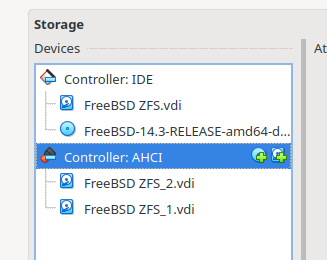
The virtual machine has three disks – mirroring the future ThinkCentre setup:
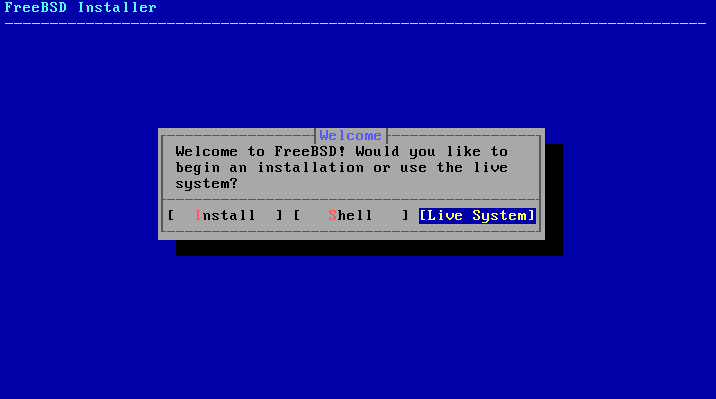
Select Live System:
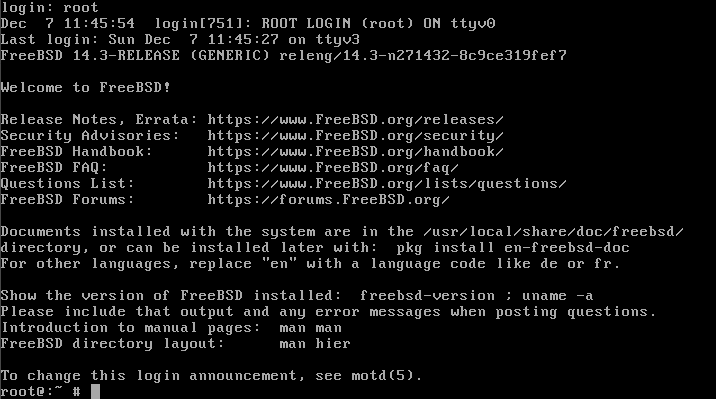
Login as root:
Bring up the network:
# ifconfig em0 up
dhclient em0
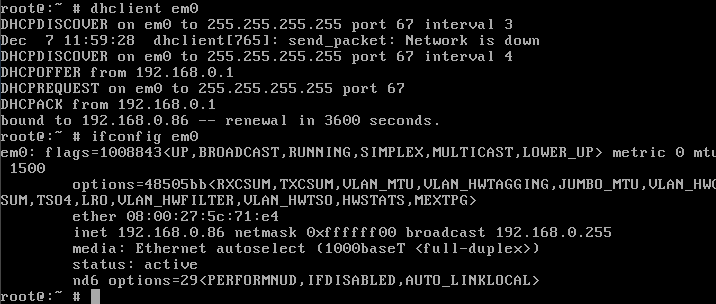
Configuring SSH on FreeBSD LiveCD
For SSH, we need to set a root password and make changes to /etc/ssh/sshd_config, but currently, this doesn’t work because the system is mounted as read-only:

Check the current partitions:

And apply a “dirty hack”:
- mount a new
tmpfsfile system in RAM at/mnt - copy the contents of
/etcfrom the LiveCD there - mount
tmpfsover/etc(overlaying the read-only directory from the ISO) - copy the prepared files from
/mntback into the new/etc
Execute:
# mount -t tmpfs tmpfs /mnt
cp -a /etc/* /mnt/
mount -t tmpfs tmpfs /etc
cp -a /mnt/* /etc/
The mount syntax for tmpfs is mount -t <fstype> <source> <mountpoint>. Since the source value is required, we specify tmpfs again.
Now, set the password with passwd and start sshd using onestart:
# passwd
service sshd onestart
However, SSH will still deny access because root login is disabled by default:
$ ssh [email protected] ([email protected]) Password for root@: ([email protected]) Password for root@: ([email protected]) Password for root@:
Set PermitRootLogin yes in /etc/ssh/sshd_config and restart sshd:
# echo "PermitRootLogin yes" >> /etc/ssh/sshd_config
service sshd onerestart

Now we can log in:
$ ssh [email protected] ([email protected]) Password for root@: Last login: Sun Dec 7 12:19:25 2025 FreeBSD 14.3-RELEASE (GENERIC) releng/14.3-n271432-8c9ce319fef7
Welcome to FreeBSD! ...
root@:~ #
Installation with bsdinstall
Run bsdinstall:
# bsdinstall
Select the components to add to the system – ports is necessary, src is optional but definitely worth it for a real NAS: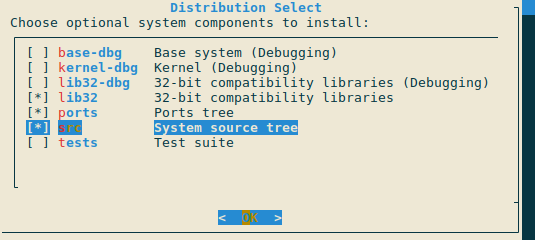
Disk partitioning
We’ll do a minimal disk partition, so select Manual:
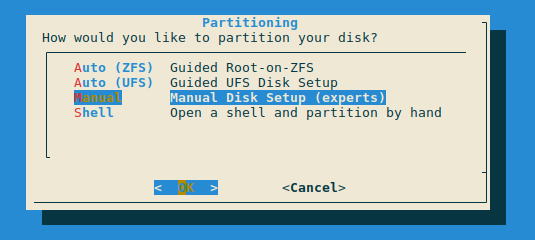
We will install the system on ada0, select it, and click Create:
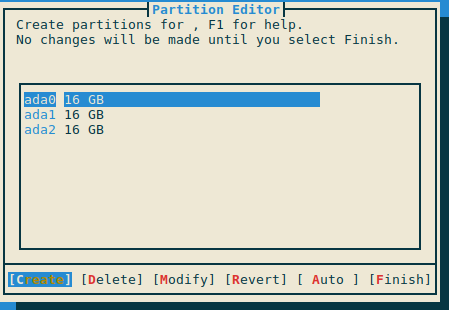
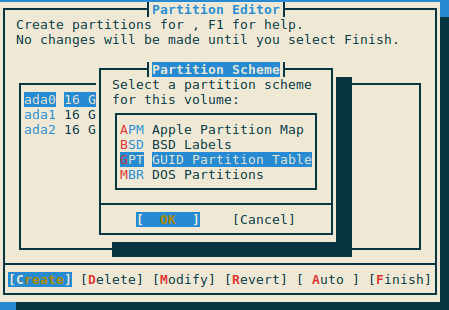
Next, choose a partition scheme. It’s standard for 2025 – GPT:
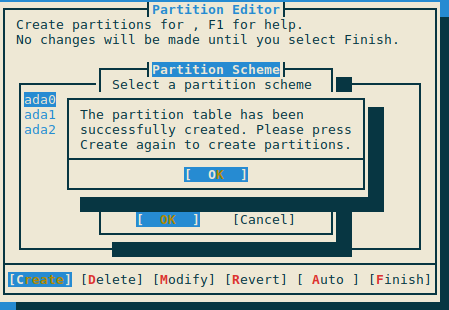
Confirm the changes, and now we have a new partition table on the system drive ada0:

The freebsd-boot Partition
Now we need to create the partitions themselves.
Select ada0 again, click Create, and create a partition for freebsd-boot.
This is just for the virtual machine; on the actual ThinkCentre, we would use type efi with a size of about 200-500 MB.
For now, set:
- Type:
freebsd-boot - Size: 512K
- Mountpoint: empty
- Label: empty
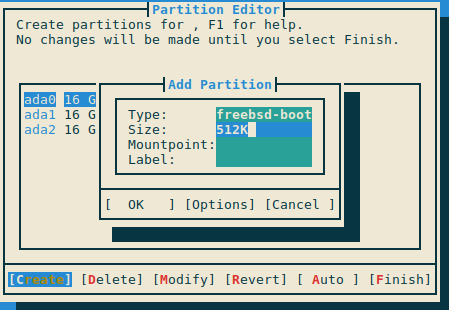
Confirm and proceed to the next partition.
The freebsd-swap Partition
Click Create again to add Swap.
Given that on the ThinkCentre we will have:
- 8 – 16 GB RAM
- no sleep/hibernate
- UFS and ZFS
2 gigabytes will be enough.
Set:
- Type:
freebsd-swap - Size: 2GB
- Mountpoint: empty
- Label: empty
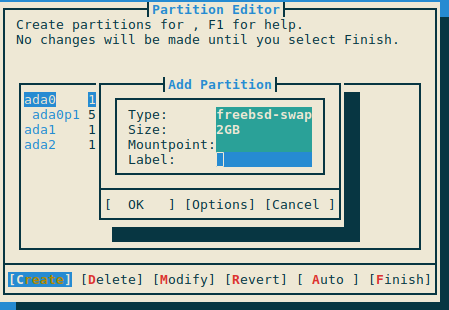
Root Partition with UFS
The main system will be on UFS because it is very stable, doesn’t require much RAM, mounts quickly, is easy to recover, and lacks complex caching mechanisms (UPD: however, after getting to know ZFS and its capabilities better, I decided to use it for the system disk as well)
Set:
- Type:
freebsd-ufs - Size: 14GB
- Mountpoint: /
- Label: rootfs – just a name for us
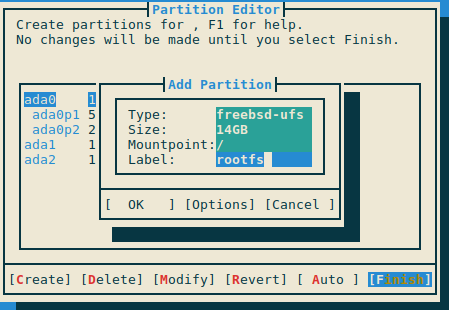
We’ll configure the rest of the disks later; for now, select Finish and Commit:

Finishing Installation
Wait for the copying to complete:
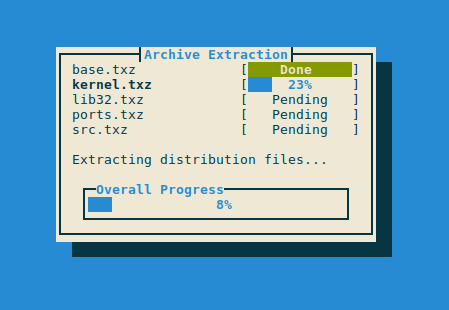
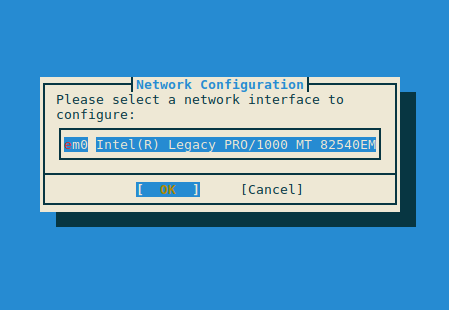
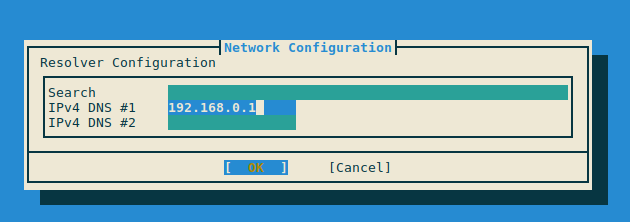
Configure the network:
Select Timezone:

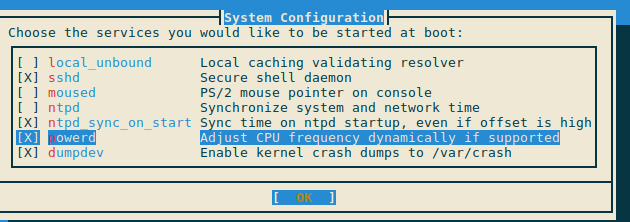
In System Configuration – select sshd, no mouse, enable ntpd and powerd:
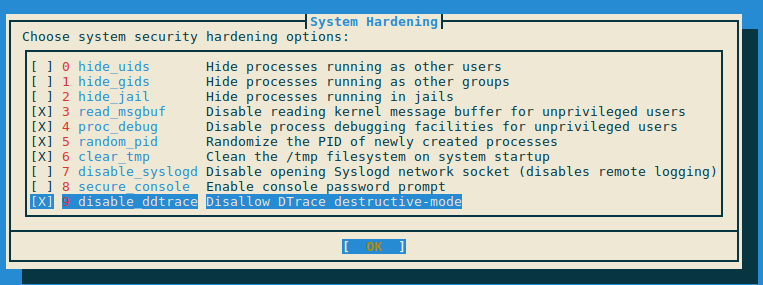
System Hardening – considering this will be a home NAS, but I might open external access (even behind a firewall), it makes sense to tune the security a bit:
read_msgbuf: allowdmesgaccess for root onlyproc_debug: allowptracefor root onlyrandom_pid: randomize PID numbersclear_tmp: clear/tmpon rebootsecure_console: requirerootpassword for login from the physical console
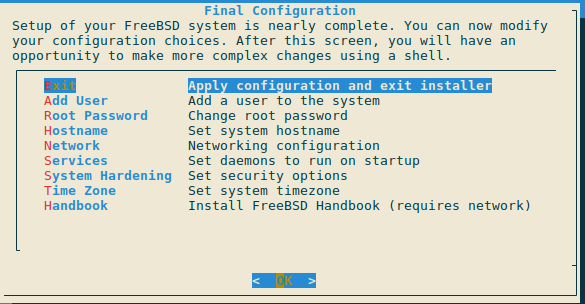
Add a user:

Everything is ready – reboot the machine:
Creating a ZFS RAID
Log in as the regular user:
$ ssh [email protected] ... FreeBSD 14.3-RELEASE (GENERIC) releng/14.3-n271432-8c9ce319fef7 Welcome to FreeBSD! ... setevoy@test-nas-1:~ $
Install vim 🙂
# pkg install vim
Check our disks.
Using geom disk for physical device info, and gpart show to see partitions on the disks.
Check disks – there are three:
root@test-nas-1:/home/setevoy # geom disk list Geom name: ada0 Providers:
- Name: ada0 Mediasize: 17179869184 (16G) Sectorsize: 512 Mode: r2w2e3 descr: VBOX HARDDISK ident: VB262b53f7-adc5cd2c rotationrate: unknown fwsectors: 63 fwheads: 16
Geom name: ada1 Providers:
- Name: ada1 Mediasize: 17179869184 (16G) Sectorsize: 512 Mode: r0w0e0 descr: VBOX HARDDISK ident: VB059f9d08-4b0e1f56 rotationrate: unknown fwsectors: 63 fwheads: 16
Geom name: ada2 Providers:
- Name: ada2 Mediasize: 17179869184 (16G) Sectorsize: 512 Mode: r0w0e0 descr: VBOX HARDDISK ident: VB3941028c-3ea0d485 rotationrate: unknown fwsectors: 63 fwheads: 16
And with gpart – current ada0 where the system was installed:
root@test-nas-1:/home/setevoy # gpart show => 40 33554352 ada0 GPT (16G) 40 1024 1 freebsd-boot (512K) 1064 4194304 2 freebsd-swap (2.0G) 4195368 29359024 3 freebsd-ufs (14G)
Disks ada1 and ada2 will be used for ZFS and its mirror (RAID1).
If there was anything on them – wipe it:
root@test-nas-1:/home/setevoy # gpart destroy -F ada1 gpart: arg0 'ada1': Invalid argument root@test-nas-1:/home/setevoy # gpart destroy -F ada2 gpart: arg0 'ada2': Invalid argument
Since this is a VM and the disks are empty, “Invalid argument” is expected and fine.
Create GPT partition tables on ada1 and ada2:
root@test-nas-1:/home/setevoy # gpart create -s gpt ada1 ada1 created root@test-nas-1:/home/setevoy # gpart create -s gpt ada2 ada2 created
Check:
root@test-nas-1:/home/setevoy # gpart show ada1 => 40 33554352 ada1 GPT (16G) 40 33554352 - free - (16G)
Create partitions for ZFS:
root@test-nas-1:/home/setevoy # gpart add -t freebsd-zfs ada1 ada1p1 added root@test-nas-1:/home/setevoy # gpart add -t freebsd-zfs ada2 ada2p1 added
Check again:
root@test-nas-1:/home/setevoy # gpart show ada1 => 40 33554352 ada1 GPT (16G) 40 33554352 1 freebsd-zfs (16G)
Creating a ZFS mirror with zpool
The “magic” of ZFS is that everything works “out of the box” – you don’t need a separate LVM and its groups, and you don’t need mdadm for RAID.
For managing disks in ZFS, the main utility is zpool, and for managing data (datasets, file systems, snapshots), it’s zfs.
To combine one or more disks into a single logical storage, ZFS uses a pool – the equivalent of a volume group in Linux LVM.
Create the pool:
root@test-nas-1:/home/setevoy # zpool create tank mirror ada1p1 ada2p1
Here, tank is the pool name, mirror specifies that it will be RAID1, and we provide the list of partitions included in this pool.
Check:
root@test-nas-1:/home/setevoy # zpool status pool: tank state: ONLINE config:
    NAME        STATE     READ WRITE CKSUM
    tank        ONLINE       0     0     0
      mirror-0  ONLINE       0     0     0
        ada1p1  ONLINE       0     0     0
        ada2p1  ONLINE       0     0     0
errors: No known data errors
ZFS immediately mounts this pool at /tank:
root@test-nas-1:/home/setevoy # mount /dev/ada0p3 on / (ufs, local, soft-updates, journaled soft-updates) devfs on /dev (devfs) tank on /tank (zfs, local, nfsv4acls)
Check partitions now:
root@test-nas-1:/home/setevoy # gpart show => 40 33554352 ada0 GPT (16G) 40 1024 1 freebsd-boot (512K) 1064 4194304 2 freebsd-swap (2.0G) 4195368 29359024 3 freebsd-ufs (14G)
=> 40 33554352 ada1 GPT (16G) 40 33554352 1 freebsd-zfs (16G)
=> 40 33554352 ada2 GPT (16G) 40 33554352 1 freebsd-zfs (16G)
If we want to change the mountpoint – execute zfs set mountpoint:
root@test-nas-1:/home/setevoy # zfs set mountpoint=/data tank
And it immediately mounts to the new directory:
root@test-nas-1:/home/setevoy # mount /dev/ada0p3 on / (ufs, local, soft-updates, journaled soft-updates) devfs on /dev (devfs) tank on /data (zfs, local, nfsv4acls)
Enable data compression – useful for a NAS, see Compression and Compressing ZFS File Systems.
lz4 is the current default option, let’s enable it:
root@test-nas-1:/home/setevoy # zfs set compression=lz4 tank
Since we installed the system on UFS, we need to add a few parameters to autostart for ZFS to work.
Configure the boot loader in /boot/loader.conf to load kernel modules:
zfs_load="YES"
Or, to avoid manual editing, use sysrc with the -f flag:
root@test-nas-1:/home/setevoy # sysrc -f /boot/loader.conf zfs_load="YES"
And add to /etc/rc.conf to start the zfsd daemon and mount the file systems:
root@test-nas-1:/home/setevoy # sysrc zfs_enable="YES" zfs_enable: NO -> YES
Reboot and check:
root@test-nas-1:/home/setevoy # zpool status pool: tank state: ONLINE config:
    NAME        STATE     READ WRITE CKSUM
    tank        ONLINE       0     0     0
      mirror-0  ONLINE       0     0     0
        ada1p1  ONLINE       0     0     0
        ada2p1  ONLINE       0     0     0
Everything is in place.
Now you can proceed with further tuning – configuring separate datasets, snapshots, etc.
For a Web UI, you could try Seafile or FileBrowser.
