In the category of “unexpectedly good native tool”, I present to you today a Windows built-in network connection history report. It is really useful to help diagnose VPN/Wi-Fi connection issues on users’ laptops 1.
You can get the report easily by running the following command as administrator:
netsh wlan show wlanreport
After a few seconds, it will generate a new HTML report2 in C:\ProgramData\Microsoft\Windows\WlanReport (the folder is user-accessible). It’s available as wlan-report-latest.html.
A few other files are also generated in this folder as the result of the command, including:
wlan-report-yyyy-mm-dd.htmlSame file as the one above, but with the generation date in the filename, allowing you to easily keep history and compare after a few days.
wlan-report-latest.cabA CAB (Windows’ own archive file format) containing the report itself as HTML and raw extracted logs used for generation:
LwtNetLog.etl,Wifi.etl&System.evtx.wlan-report-latest.xmlMost of the report data (not the raw events) in a standardized XML format.
It’s really an all-in-one analysis of the last 3 days of connection events, including global stats of session connections/failure reasons but also a more detailed event timeline.
The report is comprised of a few sections:
Main Graph
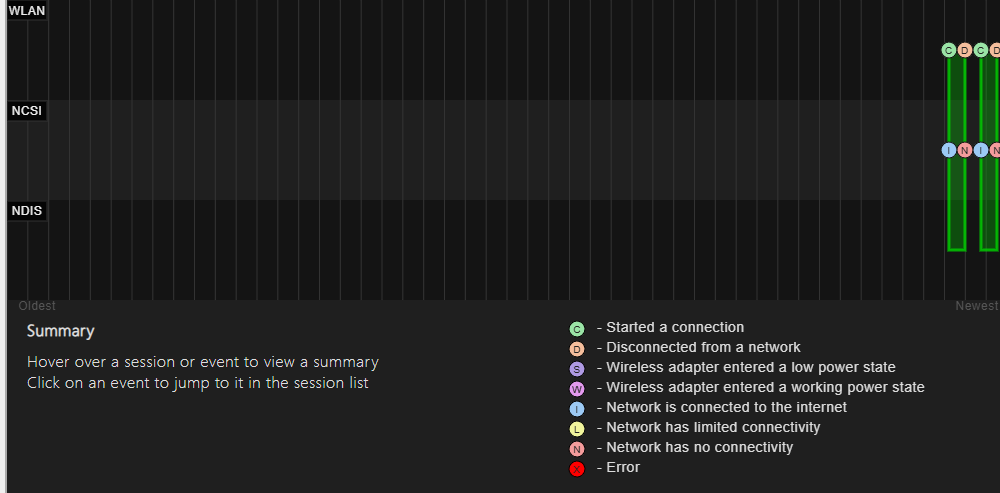
This shows at a quick glance the connection sessions recorded in the last 3 days and their status. The graph is interactive as you can hover on a session or some of its specific events and get a quick summary on the bottom left.
General System Info
There you will find multiple sub-sections with useful information like the timestamp of the report, the running user, computer name/version/bios, MDM status, …
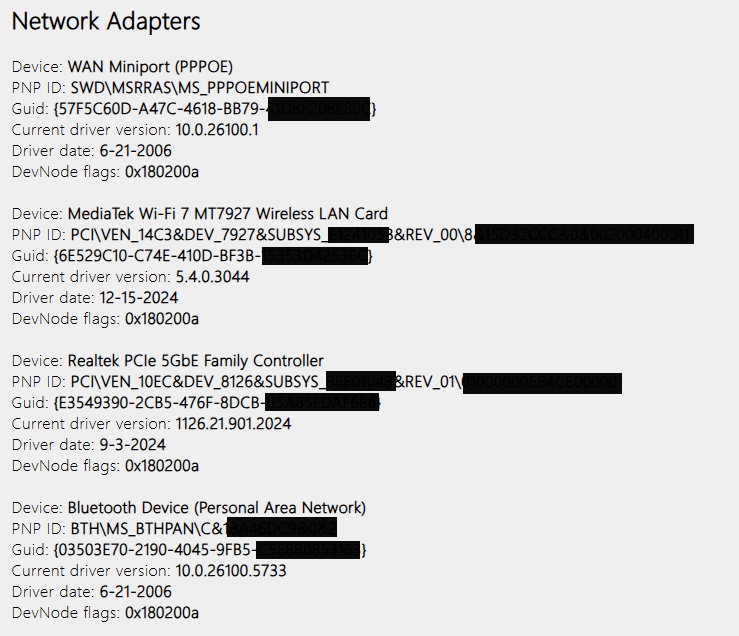
You will also get a detailed list of all network adapters, physical and virtual (like the VPN ones), including their driver versions.
Script Output
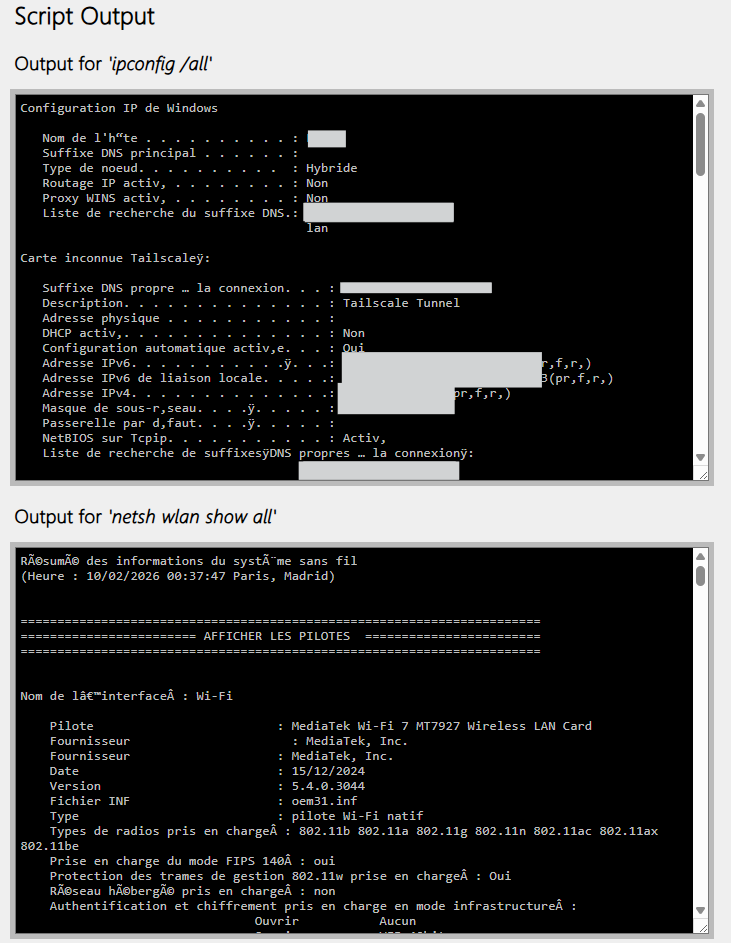
This contains the output of more standard debug commands3, including the classic
ipconfig /all(to get all the current adapters’ IP configuration) and the less used but detailednetsh wlan show all(which returns more technical/hardware adapter data).Next is the output of
certutil -store -silent My & certutil -store -silent -user Mywhich allows you to confirm at a glance if the user/computer has the proper connection certificate, especially if you’re troubleshooting 802.1x (certificate-based Wi-Fi authentication) issues.Finally, the registered Wi-Fi profiles, which can help identify mismatched settings or see if rogue APs have been registered.
Summary
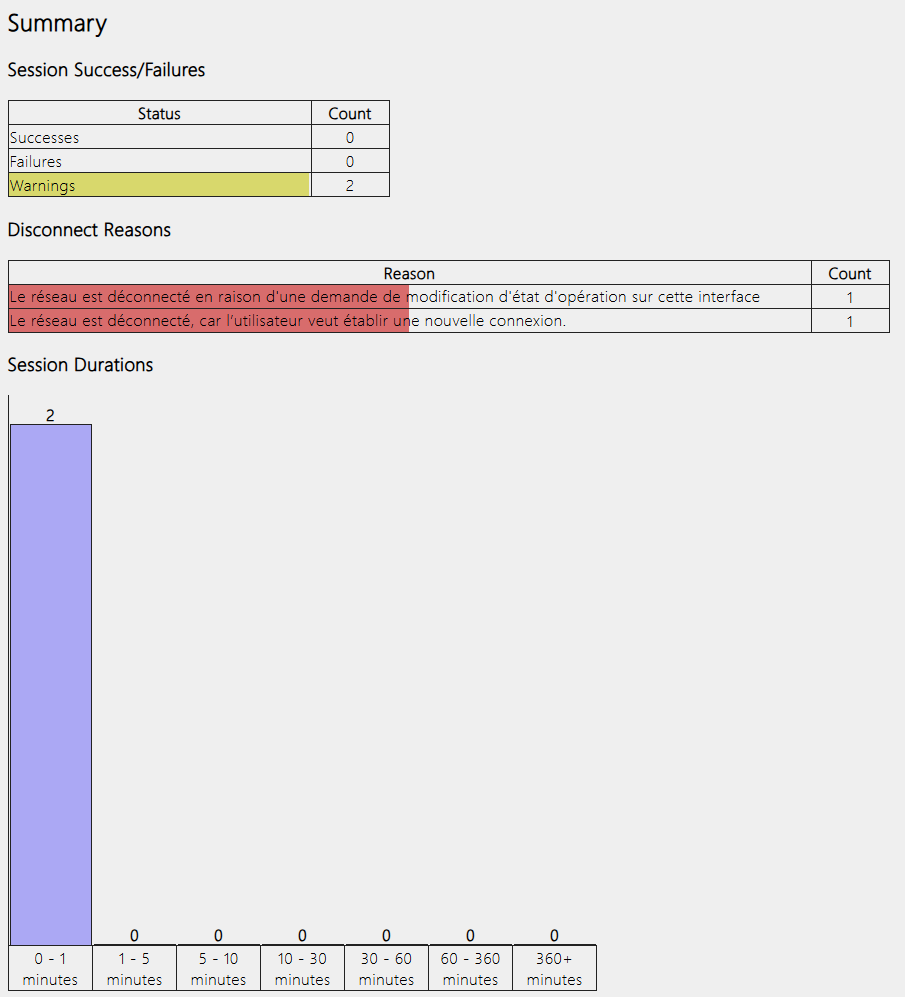
These are a couple of tables and a graph regarding the sessions themselves, to see how many were interrupted or successful.
Wireless Sessions
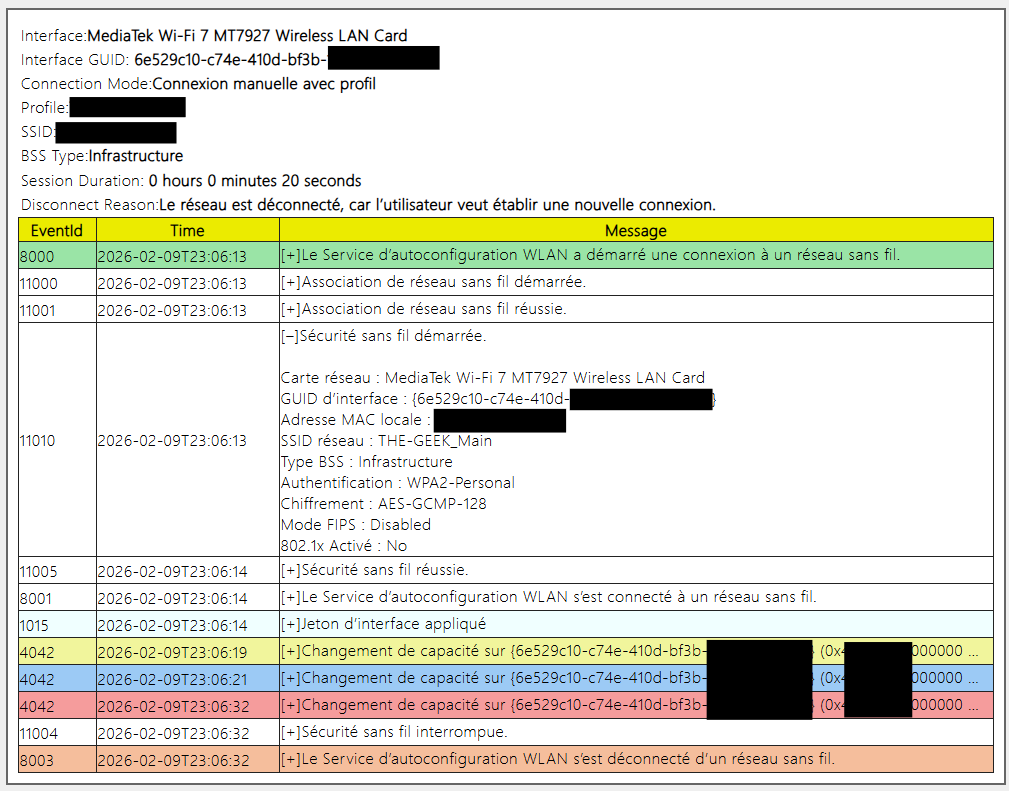
Finally, the core of the beast, the network events, grouped by session, with a nice color coding per type of event. You can expand any events with the [+] sign in the message section but overall most events are legible as-is.
Bonus Round: Automate the report
The main “issue” I have with this tool is that it requires administrator privileges to run, making it difficult to guide a standard user to do it over the phone. Also, sometimes, the last 3 days might not be enough data if our support ticket had some… latency let’s say :p
That’s where our old friend Task Scheduler can come to the rescue. As the report is usually quite light (100-250 KB), nothing prevents us from running it every day and having a ready list of reports where we only need to guide the user to the proper folder to retrieve it (or access it via administrative shares if you have configured that properly).
You can create the task with the tool of your choosing to simply run the command stated before, be it with Intune, SCCM or any other deployment tool. For convenience, you can also find the task here to be imported manually if you wish: Auto-WLAN-Report.xml
Let me know in the comments below if you plan to use this from now on or to deploy it on your laptop fleet!