Introduction
In 2015, back when Twitter was still Twitter, their dev team had a problem.
In those early days, tweets could be “favourited” by clicking a little “⭐” icon. The product team wanted to migrate to “liking” tweets, Facebook-style, with a “❤️”. As part of this update, their designers created this lovely animation:

This looks super nice, but there’s kind of a lot going on in there; by my count, there are 16 separate elements all animating at the same time (14 particles, the popping circle, the heart). Twitter’s web app needed to run on very low-end mobile devices, so it wasn’t feasible to create this procedurally using DOM nodes. Instead, they decided to borrow a technique from video games: sprites.
The basic idea with a sprite is that we create a single image that contains each individual frame of an animation in a long strip. Then, we display each frame for a fraction of a second, like a roll of film sliding through an oldschool film projector:
Show each frame for:500ms
In this blog post, I’ll show you the best way I’ve found to work with sprites in CSS, and share some of the use cases I’ve discovered. We’ll also talk about some of the trade-offs, to see when we shouldn’t use sprites.
Link to this headingBasic implementation
First thing’s first, we need an asset! Let’s use a gold trophy sprite I created a few years ago:
To produce the illusion that the fire is flickering, I drew five different versions of the blue flames. These frames are stacked side-by-side in a single image known as a “spritesheet”:

Here’s the fundamental strategy: we’ll create an <img> tag and calculate its size based on one of these frames. We can then use object-fit and object-position to control which part of the sprite is currently visible, flipping through each frame using a CSS keyframe animation.
This full image has a native resolution of 2000px × 800px, and contains 5 frames. This means that each frame is 400px × 800px. In order for this image to look sharp on high-resolution displays, we’ll want to cut this size in half, so our final image will be 200px × 400px.
By default, <img> tags will try to squeeze the entire image content into the DOM node’s area, meaning we’ll wind up seeing all 5 trophies, crammed together:
Code Playground
Code editor:
Result
This happens because of the “object-fit” CSS property(opens in new tab). This property controls what happens when there’s a mismatch between the size of the underlying image and the size of the <img> element.
The default value is fill, which tries to ensure that the entire image is visible, even if it has to be squashed. Let’s switch to cover:
Code Playground
Code editor:
Result
Now we’re getting somewhere! cover will scale the underlying image so that it covers the entire area of the <img> node. As a result, we wind up seeing 1/5th of the total image.
Next, we can use the object-position property to control which part of the underlying image is shown:

object-position:0% 0%
If you’re familiar with the SVG format, what we’re doing here is conceptually similar to modifying the viewBox to control which part of the image is displayed. In this case, the <img> tag is a 200×400 window into our trophy sprite, and we can slide the underlying image data around using the object-position property.
We’re almost there, but there’s one final wrinkle we need to iron out: the animation. How do we set this up so that we flip between each trophy variant?
Let’s try adding a looping keyframe animation:
Code Playground
Code editor:
Result
The problem is that we’re sliding the image smoothly, rather than moving in discrete steps. For this technique to work, we need to display each of the 5 frames for an equal amount of time.
We could do this in JavaScript with setInterval(), but there’s an obscure CSS timing function we can use for this instead: steps.
The core idea with steps is that instead of transitioning smoothly using a Bézier curve, the value jumps between a specified number of midpoints. A staircase, instead of a ramp. This’ll be clearer with a visualization:
Timing function:
—— Progression ——
—— Time ——
The steps timing function allows us to split the total progression into discrete values. In this case, we’re specifying 5 steps, and the animation will spend 1/5th of the total duration on each step.
We call the steps function with the number of total steps and the “step position”. We’ll unpack that in a bit, but first, here’s a complete implementation of our trophy sprite, sliding the image data within the <img> node using object-position:
Code Playground
Code editor:
Result
I think this is pretty cool. 😄
Link to this headingStep positions
In the playground above, you might’ve noticed something a bit odd:
.trophy {
  object-fit: cover;
  animation: sprite 1s steps(5, jump-none) infinite;
}
The steps() function takes two arguments. The first argument is the number of steps, which is pretty self-explanatory. But what on earth is jump-none?
The second argument is the “step position”, and it has a default value of jump-end. In this mode, steps() will exclude the final value from its discrete values. For example, if our keyframe definition goes from 0% to 100% and we set steps(5), the levels will be 0%, 20%, 40%, 60%, and 80%. It will never actually reach 100%.
Here’s a playground that showcases this clearly:
Code Playground
Code editor:
Result
Our fill keyframe goes from width: 0% to width: 100%, but the .bar element never gets beyond 80% width!
I found this quite perplexing at first, but I realized that this behaviour makes much more sense for non-looping animations:
Code Playground
Code editor:
Result
Over the course of this 2-second animation, the bar’s width grows from 0% to 80%. When the animation expires, right at the 2-second mark, the final value from our keyframe definition (width: 100%) is applied.
So, by default, steps() has a “step position” of jump-end, causing it to jump to the final value at the very end of the animation. Without the jump, our bar would become full-width at the 1.6 second mark, which would feel premature in a lot of situations.
When it comes to looping animations like our trophy sprite, however, we don’t want to do any jumping. We don’t want to land on the final frame right as the animation expires, we want to include that final frame as one of the 5 discrete values that we flip between. And we can do that by specifying steps(5, jump-none).
Link to this headingUse cases
Now that we’ve covered the basics of this technique, let’s talk about when we should actually use it. And, just as importantly, when we shouldn’t.
I mentioned at the start that the Twitter development team chose to use a sprite-based approach in part due to performance considerationsSource: I met one of Twitter’s devs back at a conference in 2016, and he told me. I think this was valid back in 2015, but I would push back against this in 2026. Devices have gotten much faster and browsers have gotten much more optimized in the years since; even the lowest-end devices ought to be able to handle 14 particles animating at the same time without breaking a sweat. And when we use a sprite for something like this, we lose some of the magic.
In my upcoming course, Whimsical Animations(opens in new tab), we build the following “Like” button. Try clicking it a few times:
The lovely thing about this approach is that it’s a bit different every time you click on it. The particles are being procedurally generated using trigonometry and randomness. By contrast, Twitter’s “Like” button is exactly the same every time you click it. It’s like we’re replaying the same video, over and over and over. 😬
So, when should we use sprites? I think the main use case is for things that, well, look like sprites! In addition to the gold trophy example, here’s another example from a generative art project(opens in new tab) I released years ago:
This little cat wanders onto the screen after a while. If you hover over her, she’ll encourage you to follow me on Bluesky(opens in new tab).
It’s a very silly example, but I think it really showcases how much more powerful sprites can be, compared to animated GIFs. We can make it so much more dynamic. For example, if you don’t interact with her for a while, she falls asleep:
While sleeping, I pick a longer animation-duration so that her breathing slows!
While this technique is seldomly used on the web, it’s used all the time in video games. There’s an enormous number of spritesheets available online. You can use this technique to have a little Sonic or Mega Man run across your site!JOSH W COMEAU ASSUMES NO LIABILITY FOR ANY COPYRIGHT INFRINGEMENT CAUSED BY YOUR USE OF ANY INTELLECTUAL PROPERTY OWNED BY COMPANIES OR INDIVIDUALS INCLUDING BUT NOT LIMITED TO NINTENDO®, SEGA®, OR CAPCOM®.
And if you’d like to learn how to create top-tier animations and interactions, you should check out my upcoming course.
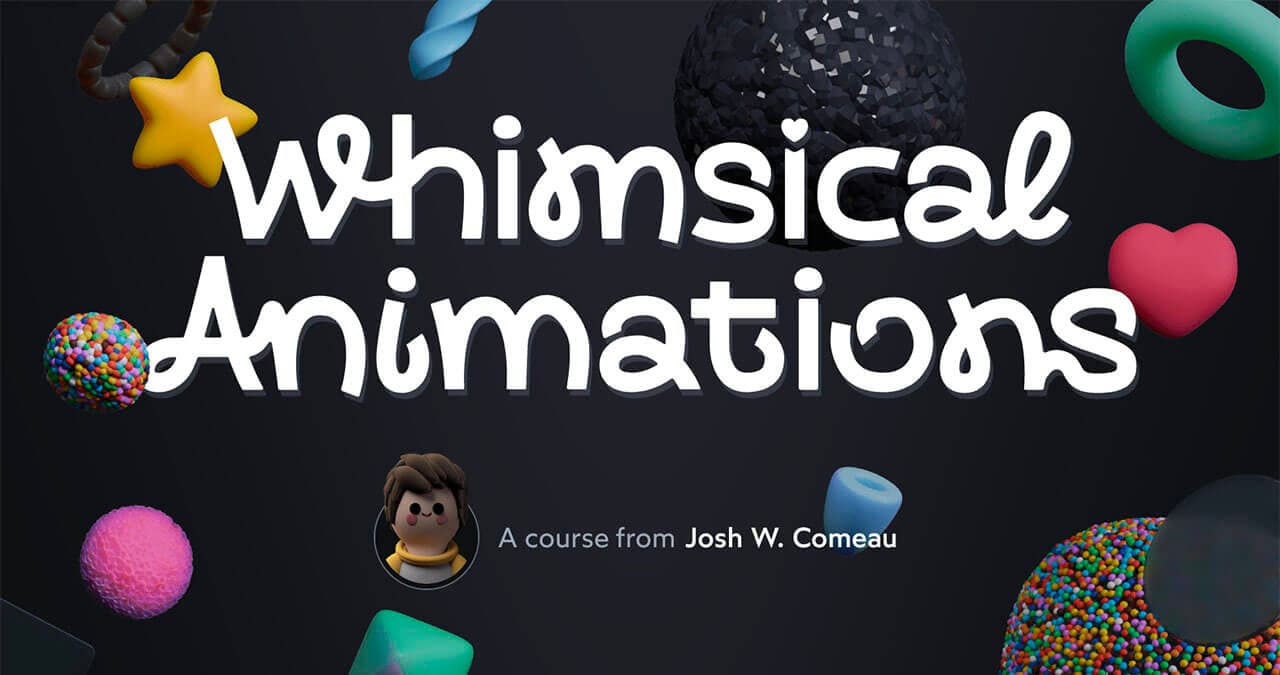
The course will teach you the fundamental techniques I use to create next-level animations and interactions in my work. The “Like” button is just one of many examples. If you’ve ever wondered how something on this blog works, there’s a very good chance we cover it in the course! ✨
Whimsical Animations should be released before the summer, and there may be a special discount for folks who sign up for updates. 😉
Last updated on
February 24th, 2026